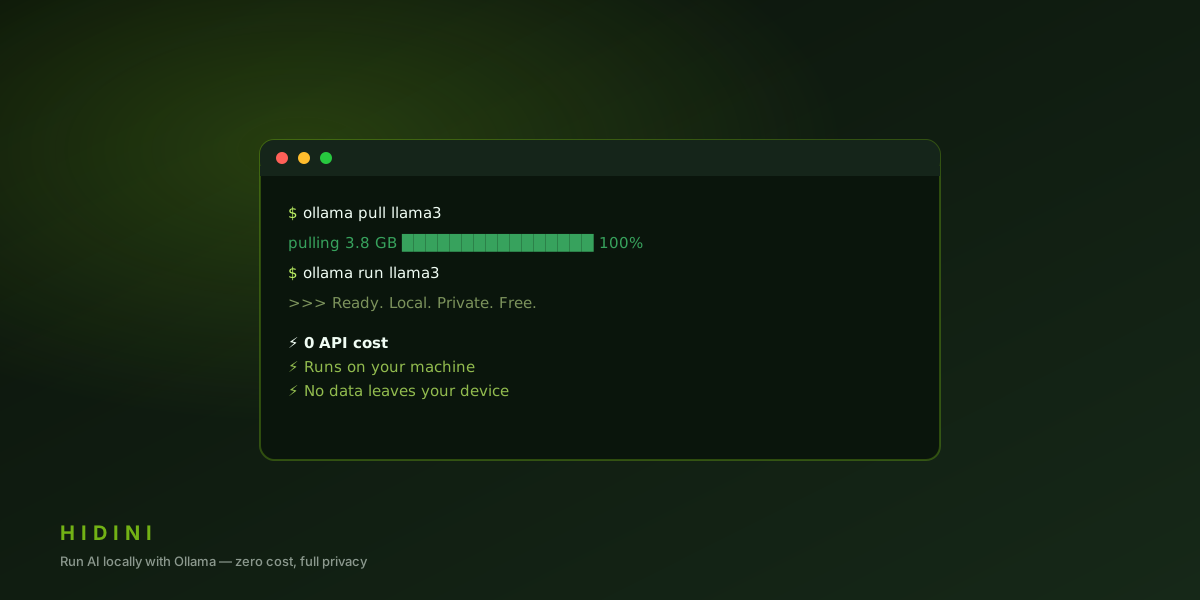
Run AI Locally with Ollama: Zero Cost, Full Privacy
Why Local AI?
Cloud AI providers are powerful, but they come with two concerns:
- Cost. API calls add up, especially during practice sessions
- Privacy. Your interview conversations are sent to a third-party server
Ollama solves both. It runs AI models directly on your Mac. No API key, no internet connection, no data leaving your machine, and no cost per token.
Installing Ollama
- Visit ollama.com and download the macOS installer
- Run the installer. Ollama installs as a menu bar app
- Open Terminal and pull a model:
# Recommended for general interview assistance
ollama pull llama3.1

# Strong at coding and reasoning
ollama pull qwen2.5

# For a lighter, faster model
ollama pull mistral

# Reasoning-focused
ollama pull deepseek-r1
Most models are 2-8 GB. Download time depends on your internet connection, but you only download once.
Connecting to Hidini
- Make sure Ollama is running (check for the llama icon in your menu bar)
- Open Hidini settings
- Go to the AI Provider tab
- Select Local AI as your provider
- Leave the endpoint at
http://localhost:11434/v1 - Type the name of the model you pulled, for example
llama3.1
No API key needed, and no credits are consumed. Hidini talks to Ollama over a local HTTP connection using its OpenAI-compatible API.
Because it is just that API, the same provider works with LM Studio, Jan, llama.cpp, or any other local server. Point the endpoint at whichever one you run.
Which Model to Choose?
The model field is free text, so anything your server exposes will work. Hidini suggests these:
| Model | Best For | Notes |
|---|---|---|
| Llama 3.1 | General interview Q&A, system design | The best all-rounder |
| Qwen 2.5 | Coding challenges, algorithms | Strong code reasoning for its size |
| Mistral | Quick answers, behavioral questions | Lightest and fastest of the four |
| DeepSeek R1 | Step-by-step problem solving | Reasoning model, slower to first token |
| Gemma 4 E4B | Balanced default | What Hidini preselects for local AI |
For Apple Silicon Macs: all of these run well. Llama 3.1 is the best all-rounder.
For Intel Macs: stick with Mistral for faster responses. The larger models will work but may be slow.
Performance Expectations
Local AI is slower than cloud APIs. Here’s what to expect:
- First response: 2-5 seconds (model loading)
- Subsequent responses: 1-3 seconds to start streaming
- Token speed: 20-50 tokens/second on Apple Silicon
This is fast enough for interview assistance. You’re not having a real-time conversation with the AI, you are requesting hints between questions.
The Privacy Advantage
With Ollama, your interview data flow looks like this:
Microphone → Hidini → Ollama (on your Mac) → HidiniNothing leaves your machine. No API keys to manage, no billing to worry about, no terms of service to read.
This is especially valuable if you’re interviewing at a company where you’ve signed an NDA. The interview conversation stays entirely on your hardware.
Combining Local and Cloud
Hidini lets you switch providers instantly. A practical workflow:
- Practice sessions: Use Local AI (free, and it doesn’t spend credits)
- Real interviews: Switch to Sonnet 5 or GPT-5.5 (better quality)
- Sensitive interviews: Use Local AI (maximum privacy)
Switching takes two clicks in settings. You can even change mid-session.
Troubleshooting
“Connection refused” error: Make sure Ollama is running. Check for the llama icon in your menu bar. If it’s not there, open Ollama from Applications.
Slow responses: Try a smaller model (Mistral instead of Llama 3.1). Close other memory-intensive apps.
“Model not found” error: You need to pull the model first. Run ollama pull modelname in Terminal.