Feature · Invisible Notes
Notes on your screen.
Invisible to everyone else.
Sticky notes that float above every app, stay with you across desktops, and never show up on screen sharing. Write on them, paste in a screenshot or a block of code, style them, move them, hide them with one key. Nobody on your call will ever know they exist.
Small notes, a lot of control
Put them exactly where you want
Drop a note anywhere on screen, drag it around, and resize it from any corner. They stay on top of every app and follow you across Spaces and full-screen workspaces.
Format the text freely
Bold, italic, underline, and text size from tiny to large. A small toolbar appears right on the note, so a formula or a key phrase can stand out at a glance.
Paste a screenshot straight in
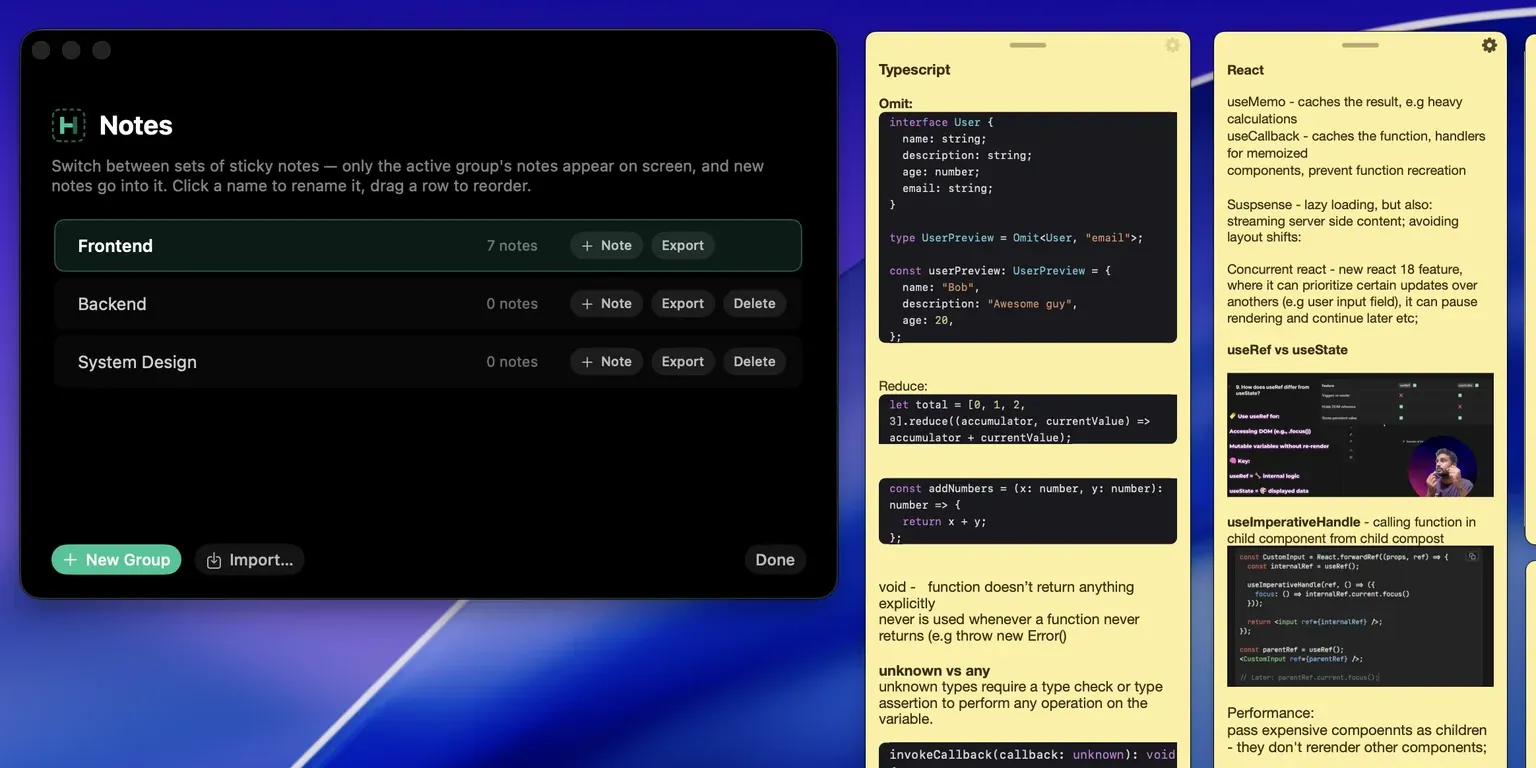
Notes take images. Paste one from the clipboard or drag it in from Finder, and it lands on its own line, sized to the note and never blown up past its own resolution. Hover it for a zoom button that opens a full-size preview, and a delete button to take it back out.
Code arrives already highlighted
Paste source code and it lands in a syntax-highlighted block: TypeScript, JavaScript, JSX, HTML, CSS, PHP, Java, Python, Go, C, C++, Swift, Rust, Ruby, and shell. A snippet copied with its language tag keeps that language, and editing inside a block recolors as you type.
Duplicate in a click
Made a note with the layout you like? Duplicate it and just swap the content. Building a set of notes for a topic takes seconds, not minutes.
Colors that help you read
Pick a color per note. Group topics by color, or just choose whatever reads best against your wallpaper. Small thing, big difference when you glance over mid-task.
Group them by what you are doing
Sort notes into named groups, with only the active group on screen. One keystroke moves between them, so each topic or interview round can have its own set.
One shortcut to show or hide
A single hotkey toggles every note at once. Need a clear screen for a moment? Hide them. Need your notes back? Same key, and they return exactly where they were.
Invisible on screen sharing
Notes share the same invisibility layer as the rest of Hidini. Zoom, Meet, Teams, Discord, OBS: none of them can capture the notes, no matter how many you have open.
One set of notes per thing you do
Notes go into named groups, and only the active group is on screen. Keep one group per topic you are working through, or per round you are preparing for, and move between them with a single keystroke. Everything else stays out of the way until you need it.
Each group exports to a single file, with every note, its position, its color, and any images you pasted in. That is how you move a set to another Mac, back it up, or hand it to a friend. Importing builds a new group alongside what you already have and never touches it.
Watch the two-minute tour
Placing a note, pasting a screenshot into it, and dropping in code that highlights itself. One keystroke flicks every note out of sight and back, and an image only zooms once you hold the control for a beat, so a preview never opens over what you were reading.
Learn with your notes in view
The fastest way to remember something is to keep bumping into it. Pin the formula you keep forgetting or the definition you mix up, and it sits at the edge of your screen while you work. Every glance is one more repetition.
Write a note per concept, color them by topic, and hide them all with one key when you want to test yourself. Paste the snippet you keep getting wrong and it comes back highlighted.
Keep your footing in interviews
Interviews have a way of emptying your head the moment the call starts. Your STAR stories, the numbers from your last project, the questions you want to ask at the end: all of it stays in front of you, and none of it appears on the shared screen.
A note that just says "slow down" sounds silly until the pressure spikes and it is the one thing on screen keeping you steady. Nobody sees it but you, which is rather the point.
Common questions
Can other people see my notes when I share my screen?
No. Notes sit on Hidini's invisibility layer, which operates below the screen capture level on macOS. Screen sharing and recording tools like Zoom, Google Meet, Microsoft Teams, Discord, and OBS cannot capture them.
How many notes can I create?
As many as you need. Each one can be moved, resized, colored, and formatted on its own, and all of them toggle together with one shortcut.
Can I format the text inside a note?
Yes. Each note has its own formatting toolbar with bold, italic, underline, and text size. You can also duplicate a note to reuse its layout and change the note color for better readability.
Can I put images in a note?
Yes. Paste a screenshot from the clipboard or drag an image in from Finder, and it lands on its own line, sized to the note. Hovering it reveals a zoom control that opens a full-size preview and a delete control to remove it. The image files live outside the note itself, so notes with pictures stay small and quick to save.
Does pasted code keep its formatting?
It does. Hidini spots source code on paste and drops it into a syntax-highlighted block, covering TypeScript, JavaScript, JSX, HTML, CSS, PHP, Java, Python, Go, C, C++, Swift, Rust, Ruby, and shell. A snippet copied with its language tag keeps that language rather than being guessed at. Detection is deliberately conservative, so ordinary prose that happens to contain a few semicolons stays prose.
Do notes survive a restart?
They do. Notes come back exactly where you left them, with their content, size, color, and formatting intact, images and highlighted code blocks included.
Do the notes follow me across desktops and full-screen apps?
Yes. Notes stay with you across Spaces and full-screen workspaces, so they are always in view when you need them.
Want the full tour? See everything Hidini can do.
Download Hidini for macOS
Free to try, no subscription required. Install in seconds and start your first session.
macOS 14 Sonoma or later · Apple Silicon and Intel