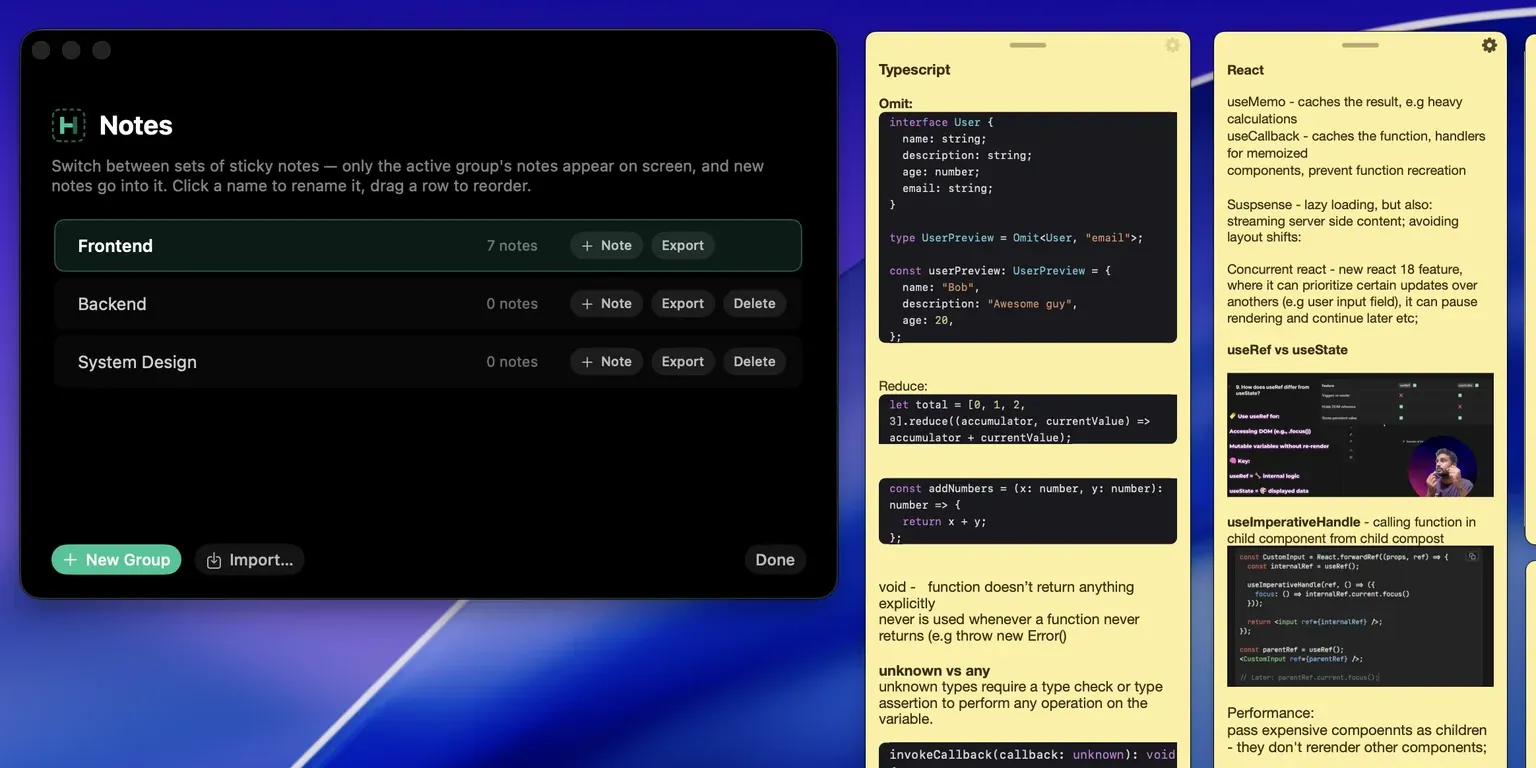
Note Groups - Organized Invisible Notes You Can Switch in One Keystroke
Notes now have groups. Instead of one long list, you can put related notes into a named set, keep only that set on screen, and move between sets with a keystroke.
Split Your Prep By What Each Round Tests
Say you are interviewing for a full stack role. That is usually three or four conversations spread over a couple of weeks, and each one tests something different. One flat pile of notes is the wrong shape for that.
Make a group per area instead:
- Frontend for React hooks, useMemo versus useCallback, the rendering behaviour you can never quite recite under pressure
- Backend for connection pooling, the ORM syntax you half remember, where your caching actually lives
- System Design for the capacity numbers you always guess at and the diagrams you always draw badly
Now the frontend round is just the Frontend group. Those notes are on screen and nothing else is, so you are not scrolling past database trivia while someone asks you about reconciliation. When the backend round starts, one keystroke and the screen is Backend instead.
Split it by framework if that fits your stack better: a React group, a Node group, a Postgres group. Same idea, different axis. The grouping is yours.
Switch into a group and its notes come back exactly where you left them, same size, same color, still undetectable on every screen share. Switch away and they are gone from your screen but not from disk.
Switching Is One Key
- Cmd+Shift+] for the next group
- Cmd+Shift+[ for the previous one
- Cmd+Shift+G to bounce back to the last group you were in
A small banner names the group you land in. Without it, switching into an empty group looks exactly like a shortcut that did not fire. That banner is invisible to screen recording too, so the name of your “Google onsite” group never shows up in a capture.
There are also four shortcuts that jump straight to the first four groups in your list. They ship unbound, because taking Cmd+Shift+1 through 4 away from every other app you use is not a fair trade for a feature you might never touch. Turn them on in Settings under Hotkeys, in the new Notes section.
The Menu and the Manager
The status menu now lists every group with its note count and a checkmark on the active one. Click to switch. Under the list: New Group, and Manage Groups.
Manage Groups opens a window where you can rename a group in place, drag to reorder it, add a note to a group without switching into it, export it, or delete it.
A Group Is Also a File
Export writes the whole group to one file: every note, its position, its color, and any images you pasted in.
That is how you move your prep to another Mac, back up a week of writing, or hand a study set to a friend. Importing never touches what you already have. It builds a new group alongside your existing ones.
Try It
Open the status menu, make a group for whichever round you are prepping next, and move just those notes into it. Everything else stays exactly as invisible as it was.
More on the feature is on the invisible notes page, the full shortcut list is on the hotkeys page, and if you do not have Hidini yet, the download is here.